
How to Cast to TV with Cast X TV: Complete Guide
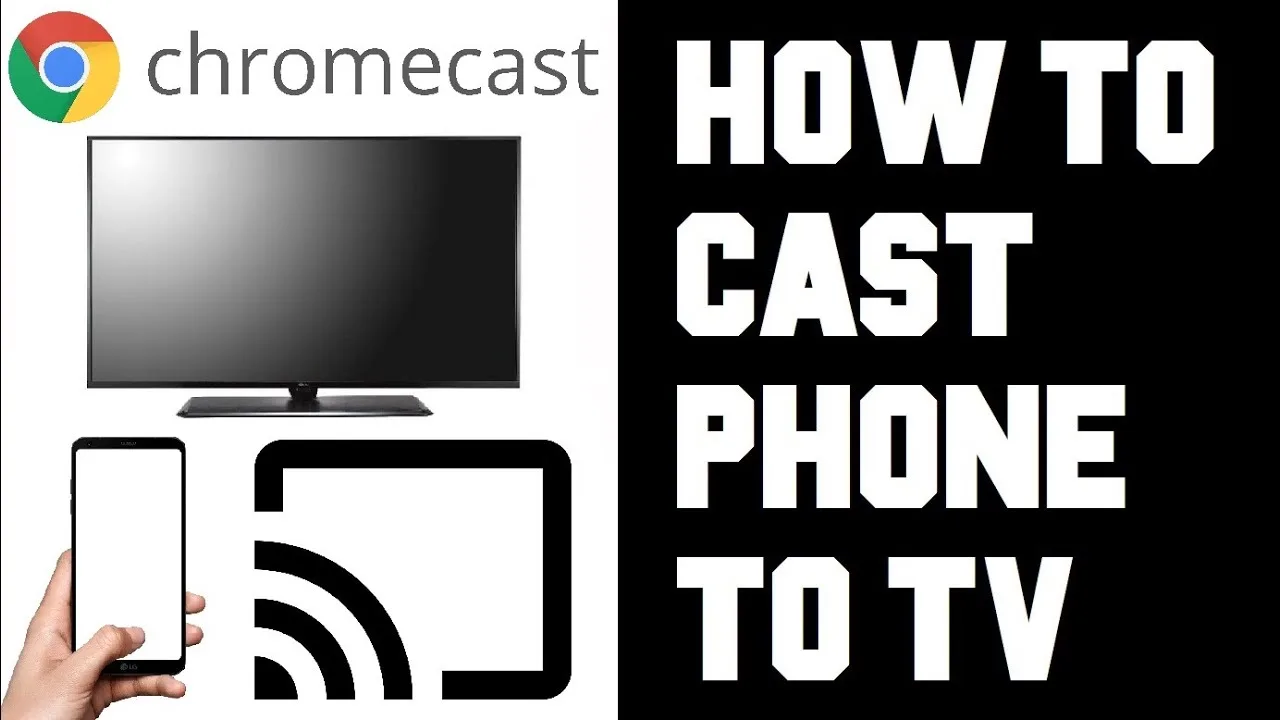
Casting is in the name, and it is the feature that turns a phone app into a household television service. With Cast X TV TV app running on your phone, the big screen becomes the display while the phone stays in your hand as the remote. This guide covers the connection methods, the setup order that avoids most problems, and the fixes for the issues everyone meets once.
The one rule that governs everything: the phone and the television must be on the same Wi-Fi network. Nearly every 'casting does not work' case in history traces back to that single requirement being quietly unmet.
Method One: Cast to a Smart TV or Chromecast
Start playback on the phone, then tap the cast icon and choose your television from the list. The TV takes over the stream while the phone becomes a controller for pause, volume, and channel changes. Because the television pulls the stream directly, you can use the phone for other things — within reason — without interrupting the picture.
If the television does not appear in the list, confirm both devices share the same network, restart the TV fully (not just standby), and try again. Guest networks and router 'AP isolation' settings also hide devices from each other, so check those if the problem survives a restart.
One advantage of casting that is easy to overlook is that your setup travels with you. Your categories, favourites, and progress live on the phone, so the same personal arrangement appears on any television you cast to — at home, at a friend's house, or in a holiday rental — with nothing to set up again.
Method Two: Install Directly on Android TV
If your television or TV box runs Android, installing the app directly removes the phone from the equation entirely. The interface is the same, a remote replaces the touchscreen, and playback does not depend on your phone's battery or proximity.
Television storage is often small, so keep the box tidy: install what the household watches, remove what it does not, and the interface stays responsive. The device notes in our compatibility guide cover televisions and boxes specifically.
Connection Tips for Stable Casting
Router position rules the living room. A router shut inside a cabinet or sitting on the floor behind the TV unit loses surprising amounts of signal. Raising it onto a shelf in the open frequently improves television streaming more than upgrading the internet package would.
For the steadiest picture, lower the stream quality one level when casting over a marginal connection. The television reveals compression less than it reveals stalling — a slightly softer picture that never freezes beats a sharp one that stops during the winning goal. Our buffering fixes cover the full routine.
Wired options exist for the truly determined: some TV boxes accept ethernet, and a wired box removes Wi-Fi from the equation on the television side entirely. If your router sits near the TV and big matches matter to your household, that single cable is the cheapest reliability upgrade available.
Making It a Household Setup
Agree the practical details in advance: which categories sit in favourites for shared viewing, who holds the phone, and how volume is handled. Small agreements turn casting from a technical trick into the household's normal way of watching.
Set up favourites during a quiet moment rather than at kickoff. The content-finding habits in our search and favourites guide transfer directly to the big screen, because the library and the lists are the same ones you built on the phone.
Final Thoughts
Same network, sensible quality, a router that can breathe — casting with Cast X TV is reliable when those three are in place. Set it up once, test it before the event that matters, and the television becomes the best screen in the house for everything the app offers.

More articles
-
How to Update Cast X TV APK to the Latest Version
Keep Cast X TV current: check your version, update safely over your existing install, and confirm everything still works afterwards.
Read article → -

Cast X TV Buffering Fixes: How to Stop Lag and Freezing
Stop Cast X TV buffering with practical fixes for Wi-Fi, quality settings, casting, and busy live sources, explained step by step.
Read article → -
Best Cast X TV Settings for Smooth Playback
Tune Cast X TV for your phone and network: quality, decoding, casting, and data settings explained in plain language.
Read article → -
How Much Data Does Cast X TV Use? A Streaming Data Guide
Understand Cast X TV data usage per hour at each quality level, and learn how to watch more on mobile data without blowing your plan.
Read article →