
How to Update Cast X TV APK to the Latest Version
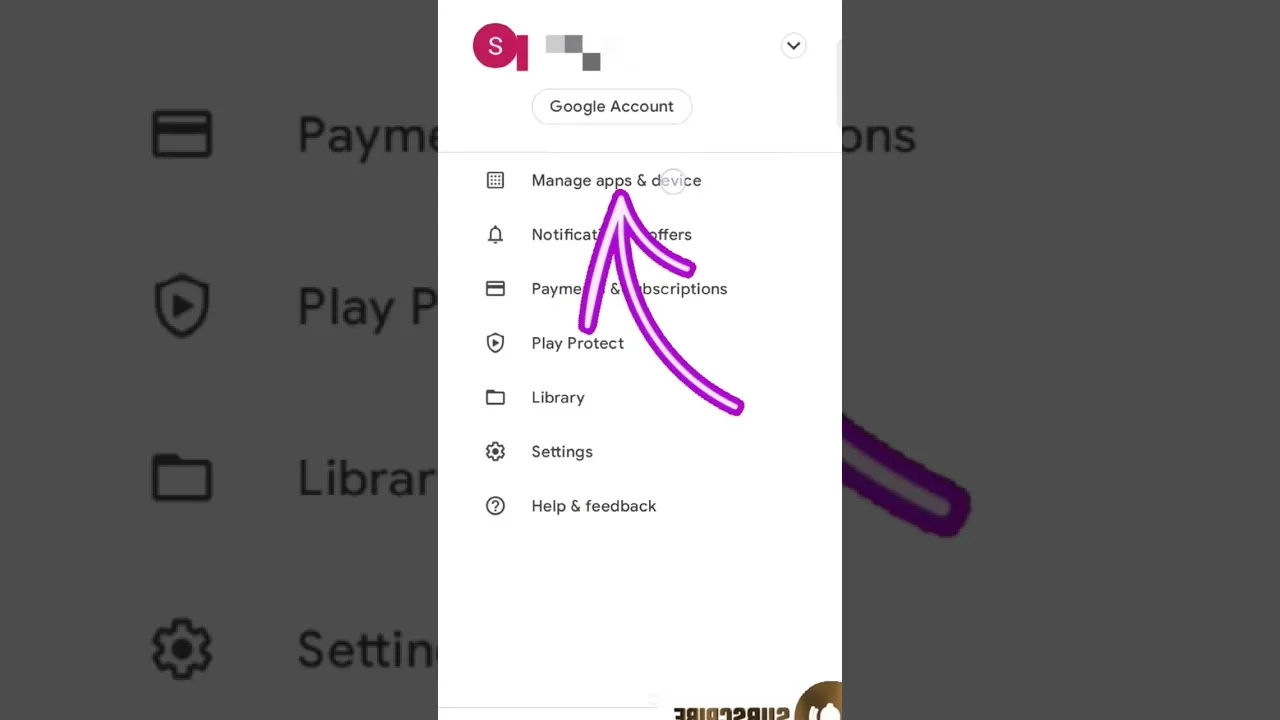
Updating is the simplest maintenance habit there is, and it quietly prevents a large share of streaming problems before they start. New builds of Cast X TV for Android fix broken streams, improve casting stability, and keep the app compatible as Android itself changes. This guide walks through checking your current version, updating without losing your setup, and verifying the new build once it is installed.
An update is not a reinstall. Done properly, it installs over the top of the app you already have, so your categories, favourites, and preferences stay exactly where you left them. The whole process takes a few minutes, and most of that is the download itself.
Check Your Current Version First
Open the app and find the version information, usually in settings or an about section. Note the number before you change anything: afterwards, comparing the old and new numbers is the only certain proof the update actually applied, rather than downloading quietly failing in the background.
While you are there, glance at how much storage the app is using. Months of use can leave a large cache behind, and clearing it from Android's app settings before updating gives the new version a cleaner start without touching your sign-in or favourites. Our cache and storage guide explains exactly what is safe to clear.
It is also worth understanding what updates typically change. Most builds adjust things you can feel — faster channel loading, fixes for streams that broke, casting reliability, support for newer Android releases — rather than redesigning the app. Your layout and habits carry over, so there is no relearning curve waiting on the other side of an update.
Download and Install the Update
Fetch the new build from the download page and install it like the original install. Android may ask you to confirm that the update can replace the existing app — accept, and your data carries across automatically. Let the installation finish completely before opening the app; interrupting an update halfway can leave it in a confused state.
If your phone blocks the install, the cause is almost always the per-app permission for installing from your browser or file manager. The first-install steps in our installation guide show where that permission lives, and the same setting governs updates.
One detail catches people out: always let the installation finish completely before opening the app. Interrupting an update by restarting the phone or force-closing the installer can leave the app half-updated and behaving strangely. If that ever happens, the reliable recovery is a full uninstall and clean install, accepting that you will set your preferences once more.
What to Check After Updating
Open the app and confirm the version number changed. Then run three quick tests: play a live channel for a minute, play something on demand, and cast to your television if you use that feature, because casting exercises parts of the app that local playback never touches.
If anything behaves oddly in the first session — a category looking empty, a list failing to load — close and reopen the app once before troubleshooting further. Lists and connections rebuild on a fresh launch, and a surprising number of post-update quirks never appear twice.
How Often Should You Update?
Check every few weeks, or immediately when something stops working properly, because a stream that broke yesterday is often fixed by a build released today. Waiting too long between updates is how fixable issues turn into the impression that the app has 'stopped working'.
There is a balance: updating the hour a build appears occasionally means meeting a fresh bug, while waiting months means living with solved problems. Updating within a week or so of noticing a new version is the sweet spot for most users.

More articles
-

Cast X TV Buffering Fixes: How to Stop Lag and Freezing
Stop Cast X TV buffering with practical fixes for Wi-Fi, quality settings, casting, and busy live sources, explained step by step.
Read article → -
Best Cast X TV Settings for Smooth Playback
Tune Cast X TV for your phone and network: quality, decoding, casting, and data settings explained in plain language.
Read article → -
How Much Data Does Cast X TV Use? A Streaming Data Guide
Understand Cast X TV data usage per hour at each quality level, and learn how to watch more on mobile data without blowing your plan.
Read article → -
How to Cast to TV with Cast X TV: Complete Guide
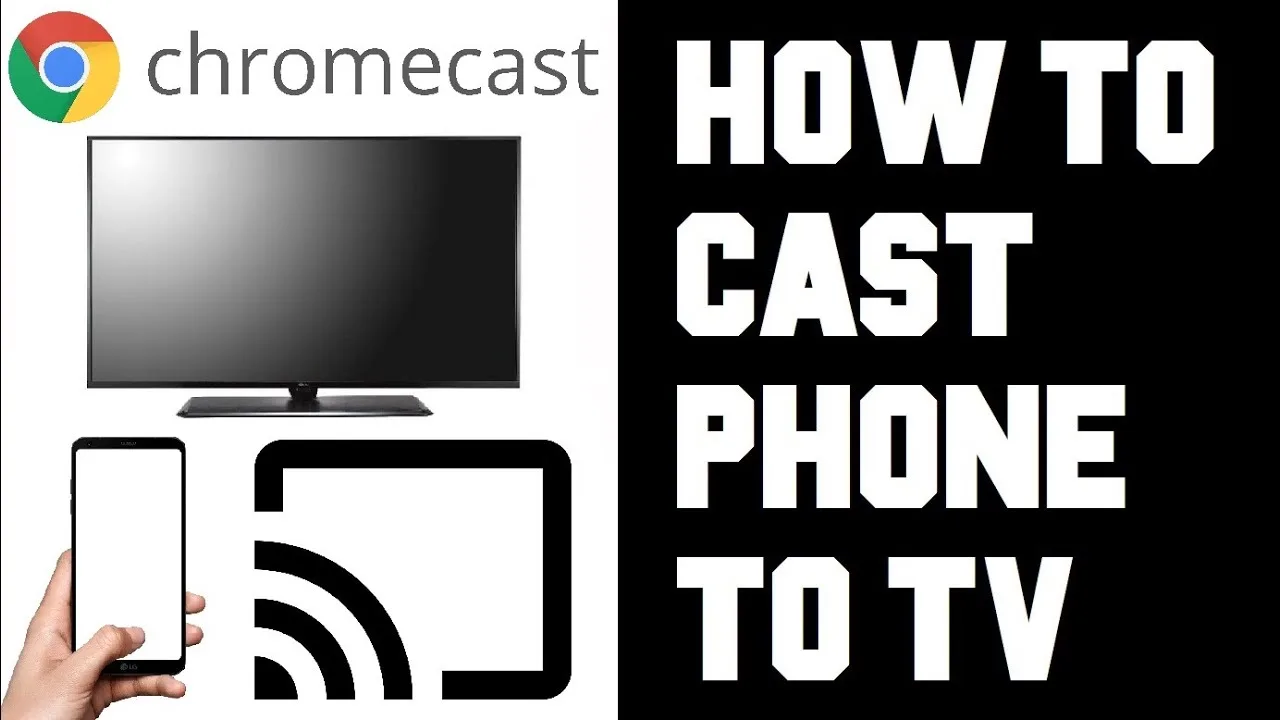
Cast Cast X TV to your television step by step: connection methods, setup for smart TVs and Chromecast, and fixes for common casting problems.
Read article →