
Cast X TV Subtitle and Audio Settings Guide
Subtitles and audio tracks decide whether a film is enjoyable or exhausting. Following dialogue in a noisy room, watching a series in your preferred language, or catching every word of a quiet drama scene all depend on settings many users never touch. This guide explains how subtitle and audio options work in the Cast X TV official site app, how to choose them per programme, and how to fix the common faults.
A principle first: subtitle and audio availability comes from the content itself. The player can only offer the tracks a stream carries, so sometimes the correct fix for a missing track is choosing a different version of the same title, not hunting through menus for an option that was never there.
Turning Subtitles On and Choosing a Language
Start playback, then open the player's subtitle option — usually a speech-bubble or CC icon, or a line inside the playback settings. Available languages appear as a list; pick yours and the text begins from that point in the stream. The choice normally sticks for the rest of that title and often carries to the next one.
If your language is not listed, the stream does not carry it. For popular films and series there is frequently more than one version in the library, and another version may carry the track you need. Searching the title again and testing the alternative is the fastest check before concluding the subtitles do not exist.
Audio Tracks and Dubbed Versions
Audio works the same way: the player menu lists the tracks embedded in the stream, which may include the original language and one or more dubs. Switching is instant and does not restart playback, so compare for a few seconds before settling.
Families often mix preferences — original audio with subtitles for adults, dubbed audio for children. Because the choice is per playback, everyone watches their own way on the same device without changing global settings. The broader feature set behind these options is summarised in our app features overview.
Fixing Subtitle Sync Problems
Out-of-sync subtitles — text arriving a second early or late — are the most annoying subtitle fault. Some players include a delay adjustment that shifts timing in small steps; if yours offers it, adjust in half-second steps during a dialogue-heavy scene until speech and text line up.
When no adjustment exists, the reliable cure is a different source. Sync errors are baked into a particular file, not your device, so another version of the same episode usually carries correctly timed text. Live channels rarely allow sync control, because their text is embedded in the broadcast as it airs.
Making Subtitles Easier to Read
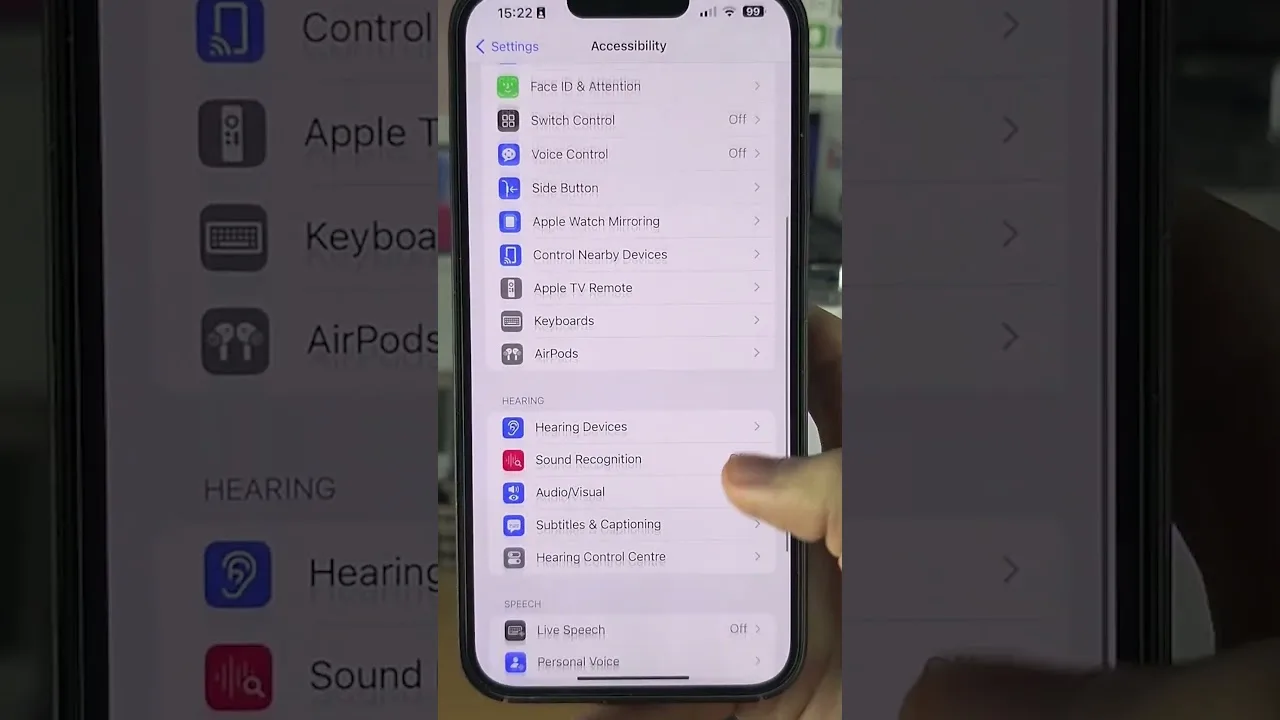
Readability partly lives in Android's own settings. Under Accessibility, caption preferences — text size, font, background — are respected by many apps. Enlarging the text and adding a solid background makes a dramatic difference on bright scenes and when casting to a television across the room.
Match the text to your viewing distance. What is comfortable on a phone at arm's length is far too small on a TV. If you watch both ways, expect a quick adjustment when you switch screens, and treat it as part of settling in. General playback comfort also improves with the tuning in our best settings guide.
Final Thoughts
Subtitles and audio are personal settings, and five minutes spent learning them pays back on every film. Know where the track menus live, understand that availability comes from the content, fix sync by switching sources, and size the text for your screen. After that, the only thing left to choose is what to watch.

More articles
-
How to Update Cast X TV APK to the Latest Version
Keep Cast X TV current: check your version, update safely over your existing install, and confirm everything still works afterwards.
Read article → -

Cast X TV Buffering Fixes: How to Stop Lag and Freezing
Stop Cast X TV buffering with practical fixes for Wi-Fi, quality settings, casting, and busy live sources, explained step by step.
Read article → -
Best Cast X TV Settings for Smooth Playback
Tune Cast X TV for your phone and network: quality, decoding, casting, and data settings explained in plain language.
Read article → -

How Much Data Does Cast X TV Use? A Streaming Data Guide
Understand Cast X TV data usage per hour at each quality level, and learn how to watch more on mobile data without blowing your plan.
Read article →